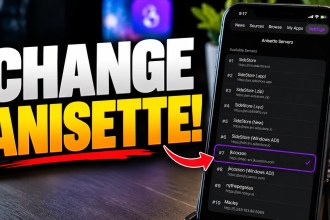
https://ani.sidestore.io
https://ani.sidestore.app
https://ani.sidestore.zip
https://ani.846969.xyz
https://new.ani.sidestore.io
https://win.ani.sidestore.io
https://mac-ani.jkcoxson.com
https://ani.jkcoxson.com
https://ani.npeg.us
http://5.249.163.88:6969
https://anisette.wedotstud.io
https://ani.xu30.top
https://ani.owoellen.rocks
https://ani.idevicehacked.com
https://ani.neoarz.com
https://ani3server.fly.dev
https://ani.jaydenha.uk
https://anisette.crystall1ne.dev
https://omni.ethxn.xyz
https://ani.sjwon0368.dpdns.org
How to Set Up Anisette Servers in SideStore
SideStore doesn’t show the Anisette Servers option by default. To access it, open User Customizations, enable Anisette Servers, and then disable On-Device Anisette.
If you prefer not to disable On-Device Anisette, you can try adding one of these above servers directly.
Important
Copy the server address exactly as shown. Even a small typo can prevent the server from working. Because these are community-hosted servers, availability may also vary.
FAQ
What is Anisette in SideStore?
Anisette is used during SideStore’s authentication and app-signing process.
How do I enable Anisette Servers?
Go to User Customizations in SideStore and enable Anisette Servers.
Do I need to disable On-Device Anisette?
The provided setup instructions say to disable it when enabling the Anisette Servers option. Alternatively, you can try using a listed server directly.
What if a server doesn’t work?
Try another server from the list and double-check that you copied its address correctly.