


Introduction
DolphiniOS is one of the most advanced and stable emulators that lets you play Nintendo Wii and GameCube games directly on your iPhone or iPad, even on the latest iOS versions like iOS 16, 17, 18 and 26. If you’ve ever wanted to bring your favorite Nintendo classics like Mario Kart Wii, The Legend of Zelda, or Super Smash Bros. to your Apple device—this guide will walk you through everything step by step.
- Introduction
- What Is DolphiniOS?
- Requirements Before Installing DolphiniOS
- Installing DolphiniOS Using AltStore or SideStore
- How to Add and Play Games on DolphiniOS
- How to Enable JIT for Better Performance
- Performance & Optimization Tips
- Troubleshooting Common Issues
- Final Thoughts
- Frequently Asked Questions
What Is DolphiniOS?
DolphiniOS is the iOS port of the famous Dolphin Emulator, which has long been popular on Windows, macOS, and Android. It faithfully emulates Nintendo Wii and GameCube consoles, providing console-grade performance and compatibility on iPhones and iPads.
Developed by OatmealDome, this emulator delivers smooth gameplay and regular updates. It’s completely safe to use and doesn’t require any jailbreak. You can install it easily using AltStore or SideStore, two reliable IPA signing platforms for iOS users.
Requirements Before Installing DolphiniOS

Before you begin, make sure you have the following tools ready:
- An iPhone or iPad running iOS 14–26
- A Mac or Windows PC with AltServer installed
- Either AltStore or SideStore configured on your device
- A USB-C or Lightning cable for connection
- Your own Wii or GameCube game backups in
.ISOor.WBFSformat
⚠️ Legal Note: Only use game ROMs that you personally own. Sharing or downloading copyrighted games is illegal and against emulator guidelines.
Installing DolphiniOS Using AltStore or SideStore

For this example, we’ll focus on AltStore, but you can follow the same method for SideStore (recommended for wireless installation).
- Launch AltStore on your computer and open AltServer from the system tray or menu bar.
- Connect your iPhone or iPad to your computer with a cable.
- On your iPhone, open the AltStore app and go to Settings → Sources → Add Source.
- From the list, add OatmealDome’s Altstore Source by tapping on the plus icon.
- Go back to the Browse tab and locate DolphiniOS.
- Tap Install to begin the download and installation process.
- Launch DolphiniOS — your emulator is now ready to use!

How to Add and Play Games on DolphiniOS
Once DolphiniOS is installed, adding your games is easy:
- Open DolphiniOS and tap the “+” button.
- Locate your .ISO or .WBFS file from your storage and import it.
- Your game will appear in the main library with its cover art.
- Tap on the game title to start playing instantly, but make sure to ENABLE
How to Enable JIT for Better Performance
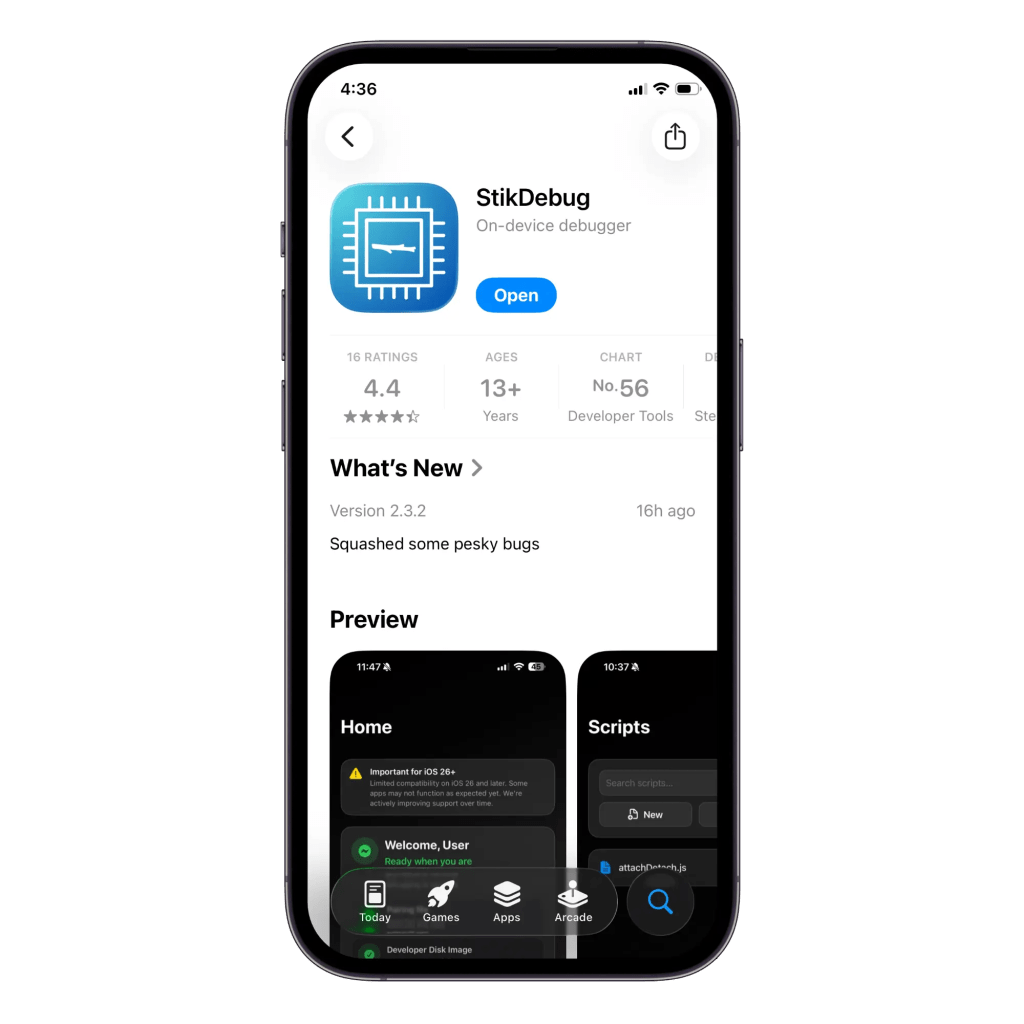
Performance & Optimization Tips
To get the most out of DolphiniOS, follow these tips:
- Close all background apps before launching the emulator.
- Enable JIT whenever available.
- Keep both AltStore and DolphiniOS updated to the latest versions.
- Use SideStore to avoid re-signing apps every 7 days.
- Store your game backups in local storage for faster loading times.
- Use an external controller like a Nintendo Switch Pro Controller or PS5 DualSense for the best experience.
Troubleshooting Common Issues

- App not installing? Reopen AltServer on your PC and reconnect your device.
- Game not showing? Make sure your file format is
.ISOor.WBFS. - Crashing or lagging? Lower resolution settings or disable enhancements.
Final Thoughts
DolphiniOS is the best and most reliable Wii and GameCube emulator for iOS, providing excellent performance without requiring a jailbreak. It turns your iPhone or iPad into a portable Nintendo console, allowing you to relive your favorite titles anytime, anywhere.
By following this guide and watching my detailed YouTube tutorial, you’ll be ready to set up DolphiniOS, import your game backups, and enjoy smooth, console-quality gameplay right on your Apple device.
So, grab your controller, fire up DolphiniOS, and start gaming like it’s 2006 again — but this time, on iOS!
Frequently Asked Questions
1. What is DolphiniOS?
Answer:
DolphiniOS is a powerful Nintendo Wii and GameCube emulator designed for iPhone and iPad. It allows you to play your favorite console games directly on iOS devices with smooth performance and accurate graphics — no jailbreak required.
2. Is DolphiniOS safe to use on iPhone or iPad?
Answer:
Yes, DolphiniOS is completely safe when downloaded from trusted sources like the official DolphiniOS or AltStore/Sidestore repositories. It doesn’t require root or jailbreak, and it runs in Apple’s secure app environment.
3. Can I use DolphiniOS on iOS 17, iOS 18, or iOS 26?
Answer:
Absolutely. DolphiniOS works on the latest iOS versions, including iOS 17, iOS 18, and even iOS 26 beta builds, when installed via AltStore or SideStore. It’s regularly updated to maintain compatibility with newer iOS releases.
4. Does DolphiniOS require JIT (Just-In-Time) compilation to work properly?
Answer:
Yes, JIT improves emulator performance by boosting frame rates and responsiveness. You can enable JIT easily using AltStore or SideStore. Watch our JIT Setup Tutorial for detailed guidance. (Replace # with your actual JIT tutorial link.)
5. How do I install DolphiniOS on my iPhone or iPad?
Answer:
You can install DolphiniOS using AltStore or SideStore. Add OatmealDome’s source in AltStore, then install DolphiniOS from the list. You can also refer to my YouTube tutorial (button below in your Elementor layout) for a complete step-by-step guide.


